Table of Contents
Introduction
Time-Based Offers for WooCommerce is a powerful behavioral discount system designed to increase your WooCommerce store's conversion rates. The plugin displays intelligent time-limited discount popups when visitors spend a configured amount of time browsing your product pages.
What is Time-Based Offers for WooCommerce?
Time-Based Offers for WooCommerce is a standalone behavioral discount system with a custom admin panel. It shows a time-limited discount popup when visitors stay on a product page for a configured duration. This strategic approach helps convert hesitant visitors into customers by offering timely incentives at the right moment.
Key Benefits
- Increase Conversions: Convert up to 40% more visitors with behavioral targeting
- Smart Timing: Show popups at the optimal moment based on visitor behavior
- Flexible Targeting: Apply discounts to specific products, categories, or globally
- Real-time Analytics: Track impressions, claims, conversions, and revenue
- Custom Design: Fully customize popup appearance to match your brand
How It Works
The plugin uses a behavioral targeting approach. When a visitor lands on a product page, a timer starts counting. Once the configured trigger time is reached (e.g., 1 minute), a discount popup appears offering a time-limited discount. Visitors can claim the discount and proceed to checkout, where the discount is automatically applied.
Example Workflow:
- 1. Visitor lands on a product page
- 2. Plugin starts a 1-minute timer
- 3. After 1 minute, discount popup appears
- 4. Visitor clicks "Claim Discount" button
- 5. Discount is automatically applied at checkout
- 6. Conversion is tracked in analytics
Why Choose Time-Based Offers for WooCommerce?
Unlike traditional coupon systems that require customers to manually enter codes, Time-Based Offers for WooCommerce automatically applies discounts at checkout. This frictionless experience increases conversion rates and reduces cart abandonment. The behavioral targeting ensures discounts are shown to engaged visitors who are more likely to convert.
System Requirements
Installation
Step 1: Download the Plugin
Purchase and download the Time-Based Offers for WooCommerce plugin zip file from our website. The file will be named something like time-based-offers-for-woocommerce.zip.
Step 2: Prerequisites - Install WooCommerce
Important Requirement
Time-Based Offers for WooCommerce requires WooCommerce to be installed and activated. If WooCommerce is not active, the plugin will automatically deactivate and show an error message.
Before installing Time-Based Offers for WooCommerce, ensure you have WooCommerce installed and activated on your WordPress site:
- 1. Go to Plugins → Add New
- 2. Search for "WooCommerce"
- 3. Click "Install Now" on the WooCommerce plugin
- 4. Click "Activate" after installation completes
- 5. Follow the WooCommerce setup wizard if prompted
Step 3: Upload to WordPress
- 1. Log in to your WordPress admin dashboard
- 2. Navigate to Plugins → Add New
- 3. Click the "Upload Plugin" button at the top
- 4. Select the Time-Based Offers for WooCommerce plugin zip file from your computer
- 5. Click "Install Now"
Step 4: Activate the Plugin
After installation, click the "Activate Plugin" button. The plugin will automatically check if WooCommerce is active. If WooCommerce is not installed or activated, you'll see an error message and the plugin will be deactivated automatically.
Step 5: Activate License or Free Trial
Before creating discount rules, you must activate the plugin with either a Free Trial or a Pro license key. Go to Time-Based Offers → Settings and complete one of the two sections below. See the Licensing & Trial section for full details.
Step 6: Access the Dashboard
Navigate to Time-Based Offers → Dashboard to view analytics. Use Product Rules to create discounts and Settings to manage license and popup design.
Success
The plugin is now ready to use! Database tables have been automatically created during activation.
Licensing & Trial
Time-Based Offers for WooCommerce uses server-side license verification. Your WordPress site must be connected to our licensing server with either a free trial email or a Pro license key. Without an active trial or license, the plugin will not run on the storefront and admin features will be locked.
Where to Activate
Go to WordPress Admin → Time-Based Offers → Settings. You will see two separate sections:
- Free Trial — for trial users (email only)
- Pro Plan License — for paid customers (license key)
Option A: Free Trial
Start a free trial from our website, then connect it to your WordPress store:
- 1. Visit our website and register for the Free Trial using your email address
- 2. In WordPress, go to Time-Based Offers → Settings → Free Trial
- 3. Enter the same email you used on our website
- 4. Click Verify Trial to check status, then Save Trial Email
Status messages (Free Trial section):
- • Free Trial active until [date] — trial is working
- • Free trial expired on [date] — trial ended; upgrade to Pro
- • Enter your trial email to activate the free trial — no email saved yet
Option B: Pro Plan License
After purchasing Pro on our website, activate your license in WordPress:
- 1. Purchase the Pro plan on our website and copy your license key
- 2. Go to Time-Based Offers → Settings → Pro Plan License
- 3. Paste your license key in the License Key field
- 4. Click Verify License, then Save License
Status messages (Pro Plan section):
- • Pro license active — full access unlocked
- • Invalid license key — key is wrong or deactivated
- • Enter your Pro license key after purchase — no key saved yet
What Happens When Trial Expires?
When your free trial expires and you do not have a valid Pro license:
- Product Rules locked — you cannot add, edit, delete, or activate/deactivate rules
- Frontend disabled — discount popups will not appear on product pages
- Existing rules paused — rules list shows "Paused — License expired — not running on shop"
- Discounts stop applying — no discounts at checkout
Important: Free Trial and Pro Plan are checked independently. If you have a valid Pro license, the plugin works even after your trial expires. To test trial expiry, make sure the Pro license key field is empty and saved.
Admin Menu Overview
Verification & Security
- License status is verified against our server — not stored locally only
- Your discount rules are saved in your Time-Based Offers account and synced to your store automatically, so they are never lost when you move or reinstall the plugin
- Your store refreshes its rules every few hours; if our server is briefly unreachable, your popups keep working for up to 48 hours
- Status is re-checked daily via WP-Cron and on admin actions
- Each site domain is validated during verification
- Use Verify Trial or Verify License before saving to confirm status
Payment Methods
All payments on our website are processed securely through Paddle — a trusted global payment platform. Paddle handles card details, wallets, and PayPal so your payment information stays encrypted and secure. You do not pay inside the WordPress plugin; payment happens on our website first, then you connect your account to WordPress.
Supported Payment Methods
Google Pay
Fast checkout on supported Android devices and Chrome browsers.
Apple Pay
One-tap payment on Safari, iPhone, iPad, and Mac when Apple Pay is set up.
PayPal
Pay with your PayPal balance or linked bank/card through Paddle checkout.
Credit / Debit Card
Visa, Mastercard, and other major cards via Paddle's secure card form.
Note: Google Pay and Apple Pay only appear when your device and browser support them. If they are unavailable, use PayPal or Card instead.
Before You Pay
- 1. Create an account on our website (Sign Up) or Log In if you already have one
- 2. Go to the Pricing section and choose Free Trial or Pro
- 3. The secure payment window opens — enter your email and select your country
- 4. Click your preferred payment method — Paddle checkout opens as an overlay
- 5. Complete payment — your trial or license is activated automatically
Free Trial Payment ($0)
The Free Trial plan costs $0. When you click Start Free Trial:
- The same payment screen opens with Google Pay, Apple Pay, PayPal, and Card options
- Click a payment method to open the Paddle checkout overlay (used to verify your payment details for the trial)
- Alternatively, submit the form to start the trial directly when available
- Your trial period begins (default: 14 days) — full plugin access during this time
- No automatic charge when the trial ends — you must manually upgrade to Pro
After Free Trial: Go to My Account on our website to see trial status. Then in WordPress go to Time-Based Offers → Settings → Free Trial and enter the same email you used on our website.
Pro Plan Payment (Paid)
When you purchase the Pro plan:
- Currency: All payments are in USD ($) only
- Domain quantity: Select how many website domains you need (each domain gets a license)
- Payment required: You must select a payment method (Google Pay, Apple Pay, PayPal, or Card)
- Paddle checkout: Complete payment in the Paddle overlay
- License key: Generated automatically after successful payment
- Lifetime access: Pro is a one-time purchase — no monthly subscription
After Pro Purchase: Open My Account on our website to copy your License Key. In WordPress go to Time-Based Offers → Settings → Pro Plan License, paste the key, click Verify License, then Save License.
My Account & Payment History
After logging in, open My Account from the website header to view:
- Trial status — active trial days remaining or expired notice
- License key — your Pro license key (after paid purchase)
- Activated domain — which WordPress site is linked to your license
- Payment History — list of trial and paid transactions with date, amount, and payment method
- Upgrade to Pro — button to purchase when trial expires
Payment Flow Diagram
- Website: Sign Up / Log In → Pricing → Choose Plan → Select Payment Method → Paddle Checkout → Success
- My Account: View License Key (Pro) or Trial Email → Copy details
- WordPress: Time-Based Offers → Settings → Enter Email or License Key → Verify → Save
- Store: Create Product Rules → Discount popups work on your shop
Troubleshooting Payments
"Paddle is not configured" or payment won't open
The website administrator must configure Paddle keys (Client Token, API Key, Price ID) in the admin panel. Contact support if you see this message on the live site.
Google Pay / Apple Pay not showing
These wallets only work on compatible devices and browsers. Use Card or PayPal as an alternative — they work on all devices.
Payment succeeded but plugin not active in WordPress
Copy your license key or trial email from My Account and enter it in Time-Based Offers → Settings. Click Verify, then Save.
Trial expired — how to pay for Pro?
Log in to our website → My Account → click Upgrade to Pro → complete payment with any supported method → use the new license key in WordPress.
Getting Started
Step 0: Activate Trial or License
Before creating rules, activate the plugin in Time-Based Offers → Settings:
- Free Trial: Enter your website trial email → Verify Trial → Save Trial Email
- Pro Plan: Enter license key → Verify License → Save License
Note: If your trial has expired and you have no Pro license, Product Rules and the storefront popup will be locked until you upgrade.
Your First Discount Rule
Let's create your first discount rule to see how the plugin works.
-
1.
Navigate to Add New Rule
Go to Time-Based Offers → Product Rules → Add New
-
2.
Configure Target
Select "All Products" for your first rule to apply it globally
-
3.
Set Trigger Time
Enter 1 as the trigger time (Timing Settings are in minutes, so 1 = 1 minute)
-
4.
Configure Discount
Select "Percentage" and enter 20 as the discount value
-
5.
Save the Rule
Click "Save Rule" to activate it
Testing Your Rule
To test your new rule:
- 1. Open an incognito/private browser window
- 2. Navigate to any product page on your store
- 3. Wait for 1 minute on the page
- 4. The discount popup should appear
- 5. Click "Claim Discount" and proceed to checkout to verify the discount is applied
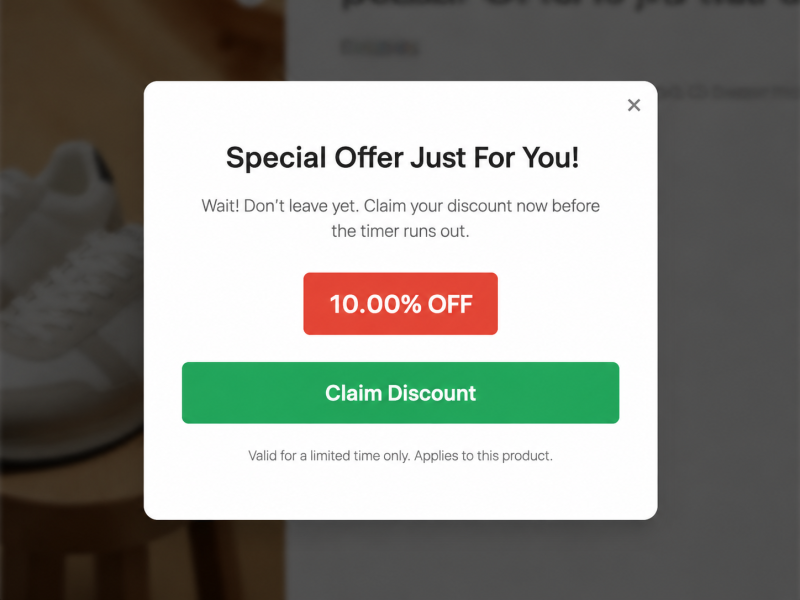
Success!
Congratulations! You've created your first discount rule. Now you can customize it further or create additional rules.
Features
Core Features
Smart Time Triggers
Display discount popups after visitors spend a configured time on product pages. Trigger times are set in minutes — decimals are allowed, e.g. 0.5 = 30 seconds.
Flexible Targeting
Apply rules to specific products, entire categories, or globally with priority override system for maximum flexibility.
Advanced Scheduling Pro
Set date ranges, specific days of week, and time windows. Use quick presets for weekends, weekdays, and business hours.
Real-time Analytics
Track total impressions, claims, conversions, revenue, and top performing products in real-time with detailed reports.
Second Tier Offers Pro
Configure backup offers for visitors who close the first popup. Set a different discount, its own discount duration and a re-trigger delay.
Custom Popup Design
Fully customize popup appearance with colors, fonts, layout, and branding. Add your logo for a professional look.
Technical Features
- WooCommerce HPOS (High-Performance Order Storage) compatible
- Session management to prevent popup spam
- Automatic cart integration with discount application
- Clean code with no conflicts with other plugins
- Mobile-responsive popup design
- Server-side license verification (Free Trial + Pro Plan)
- Performance optimized with minimal page load impact
Free Trial vs Pro Plan
There is one plugin for both plans. Free Trial and Pro users install exactly the same plugin — your plan decides which options are available. Activate it in Time-Based Offers → Settings with your trial email or Pro license key.
Upgrading is instant: there is nothing new to download or reinstall. After purchasing Pro, enter your license key in Settings and the Pro options unlock right away. Your existing discount rules stay as they are.
| Feature | Free Trial | Pro License |
|---|---|---|
| Behavioral popup + countdown | Yes | Yes |
| Product / category / global targeting | Yes | Yes |
| Percentage discount (%) | Yes | Yes |
| Popup design customization | Yes | Yes |
| Analytics dashboard | Yes | Yes |
| Product rules limit | Up to 3 rules | Unlimited |
| Fixed Amount | No | Pro |
| Flat product price | No | Pro |
| Advanced scheduling (dates / days / time) | No | Pro |
| Re-trigger delay | No | Pro |
| Second tier offers | No | Pro |
Pro-only features
- Advanced Scheduling — date range, days of week, time windows, presets
- Re-trigger Delay — wait time before showing the popup again
- Second Tier Offers — second popup after visitor closes the first one
- Fixed Amount and Flat Product Price
- Unlimited product rules (Free Trial allows up to 3)
In Product Rules, Pro-only sections show a Pro Feature notice until you activate a Pro license key. Upgrade from our website Pricing page.
Plugin Settings
Go to Time-Based Offers → Settings to manage licensing and global plugin options. Settings are organized into separate sections.
Free Trial Section
- Account Email: Same email used on our website to start the free trial
- Verify Trial: Checks trial status with our server without saving
- Save Trial Email: Saves the email to your WordPress site
Pro Plan License Section
- License Key: Your Pro license key from our website after purchase
- Verify License: Validates the key with our server
- Save License: Saves the license key to your WordPress site
General Settings
- Enable Plugin Globally: Plugin is active; individual rules are controlled in Product Rules
- Discount Applied Message: Text shown on the product page when a discount is active (e.g. "Special Offer Applied!")
Popup Design
Customize the discount popup appearance with a live preview:
- Background Color — popup panel background
- Text Color — main text color
- Button Color — "Claim Discount" button background
- Button Text Color — button label color
- Badge Color — discount badge (e.g. "20% OFF")
- Border Radius — rounded corners in pixels
- Font Family — Theme Default, Arial, Georgia, Inter, or Roboto
- Logo / Image URL — optional logo at top of popup (upload supported)
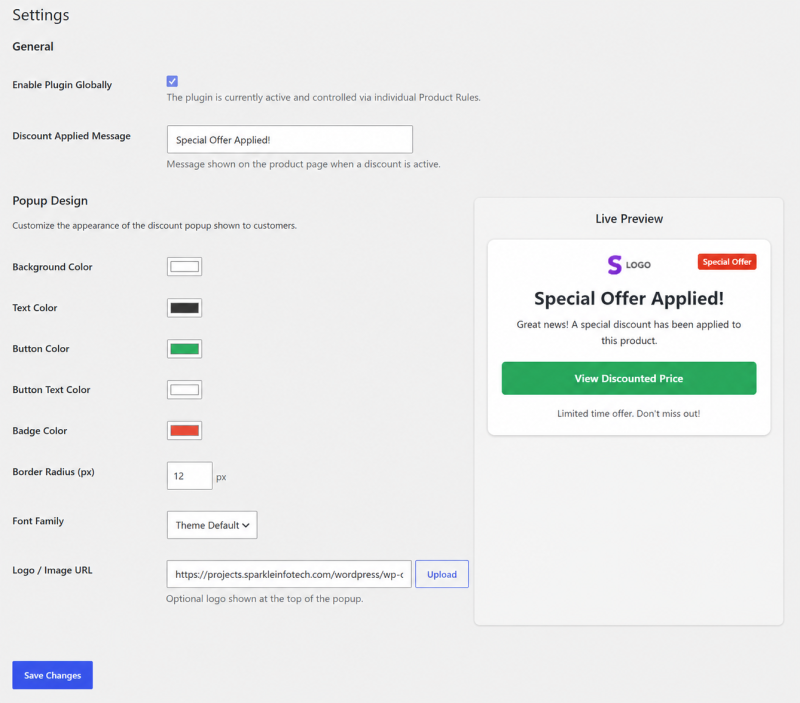
Locked settings: When your trial is expired or license is inactive, General and Popup settings become read-only until you activate a valid trial or Pro license.
Rule Configuration
Complete Rule Settings
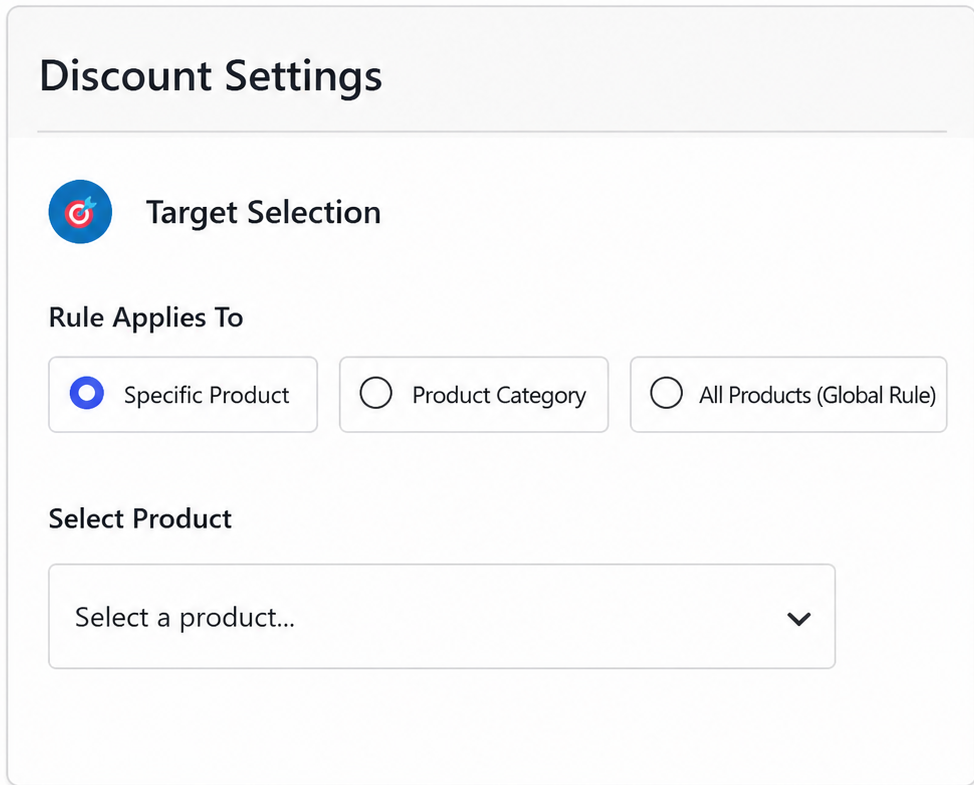
Step 1: Target Selection
Choose where to apply your discount rule:
- Specific Product: Apply to individual products (highest priority)
- Product Category: Apply to entire product categories (medium priority)
- All Products (Global): Apply to all products globally (lowest priority)
Step 2: Rule Status
Enable or disable the rule:
- Enable this rule: Check the box to activate the discount rule
- Disable this rule: Uncheck to deactivate without deleting
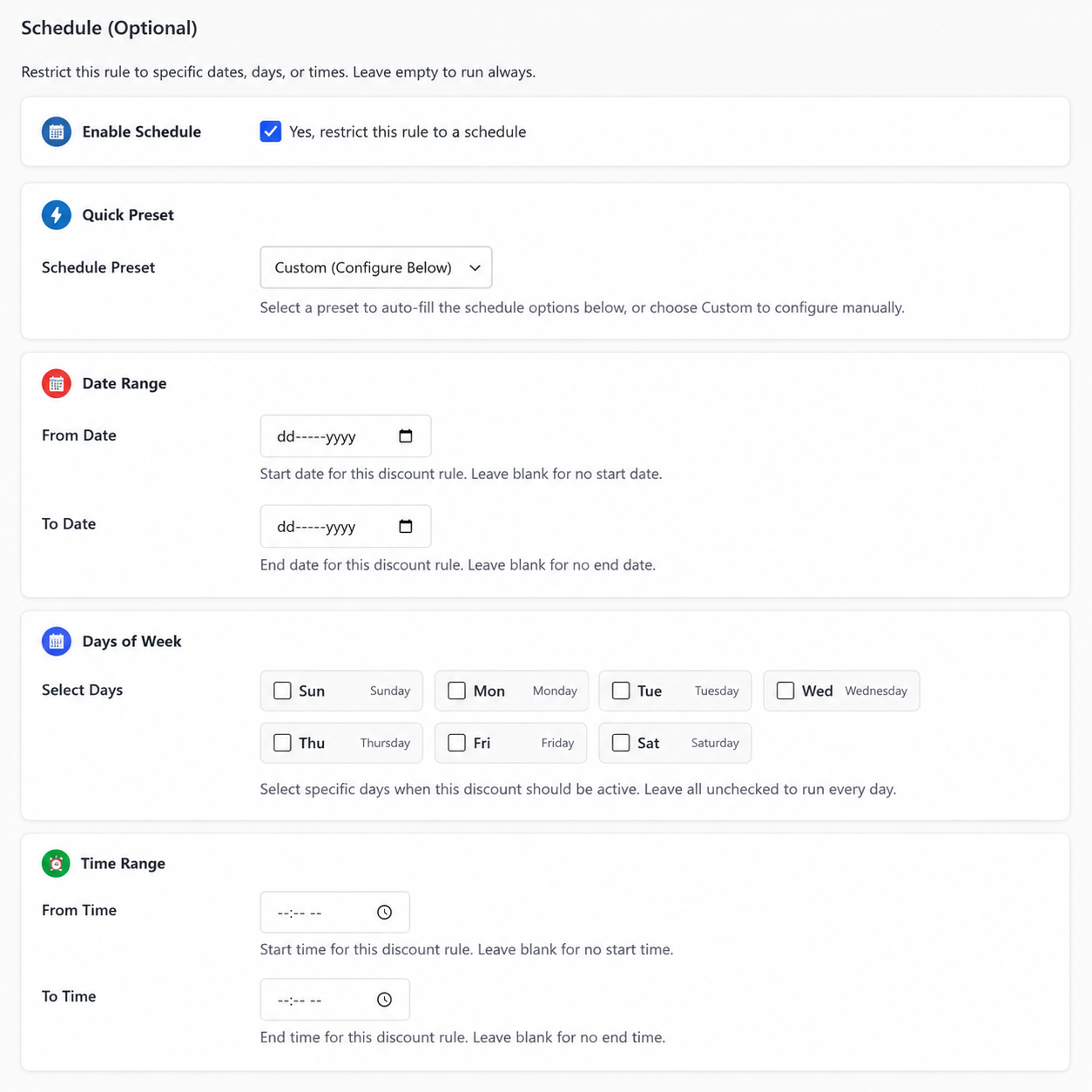
Step 3: Schedule (Optional) Pro
Restrict the rule to specific dates, days, or times. Requires Pro license.
- Enable Schedule: Check to activate scheduling options
- Quick Presets: Choose from Weekends Only, Weekdays Only, or Business Hours
- Date Range: Set start and end dates for the promotion
- Days of Week: Select specific days (Sunday through Saturday)
- Time Range: Set start and end times for daily activation
Step 4: Timing Settings
Configure when and how the popup appears:
- Trigger Time (Minutes): Time visitor must spend on page before popup appears (default: 1 minute; recommended: 0.5-1.5 minutes)
- Discount Duration (Minutes): How long the first offer is valid after claiming (countdown timer value). Default for a new rule: 60 minutes (1 hour)
- Re-trigger Delay (Minutes): How long to wait before showing popup again if user closes it. 0 = do not show it again Pro
All times are entered in minutes. Decimals are allowed, e.g. 0.5 = 30 seconds and 1.5 = 90 seconds. Rules saved before this change keep their exact times and are simply shown in minutes (e.g. 300 seconds is shown as 5).
Need help with a field? Hover over or click the small (i) icon next to the field name to see what it does. Click anywhere else or press Esc to close it.
Step 5: Discount Configuration
Set the discount type and value:
- Percentage Discount (%): Discount as a percentage (e.g., 20 for 20% off) — available on Free Trial
- Fixed Amount: Fixed currency amount off the product price Pro
- Flat Product Price: Set a fixed price for the product Pro
- Discount Value: Enter the numeric value based on selected type

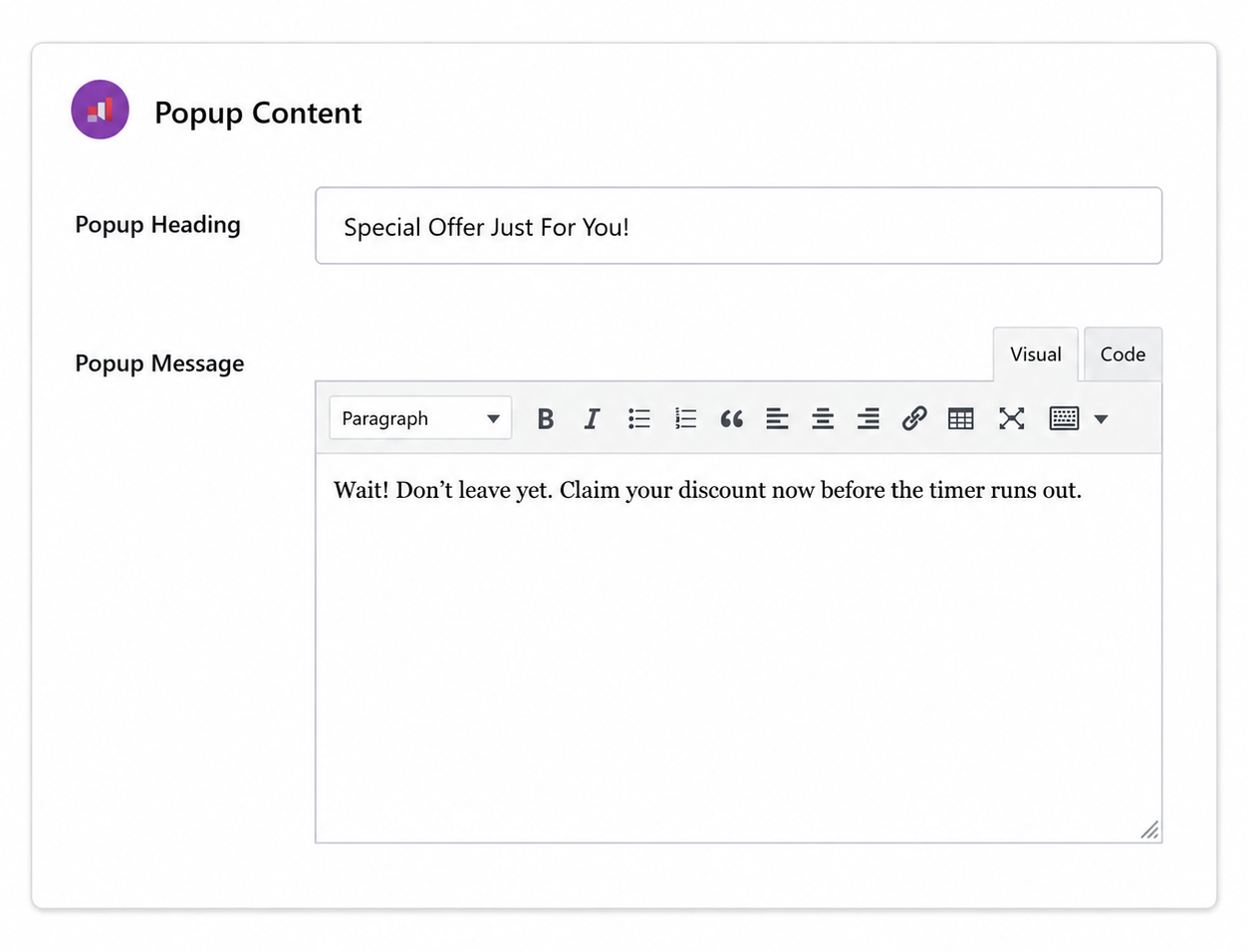
Step 6: Popup Content
Customize the popup message:
- Popup Heading: Main headline text (default: "Special Offer Just For You!")
- Popup Message: Detailed message with formatting options (default: "Wait! Don't leave yet...")
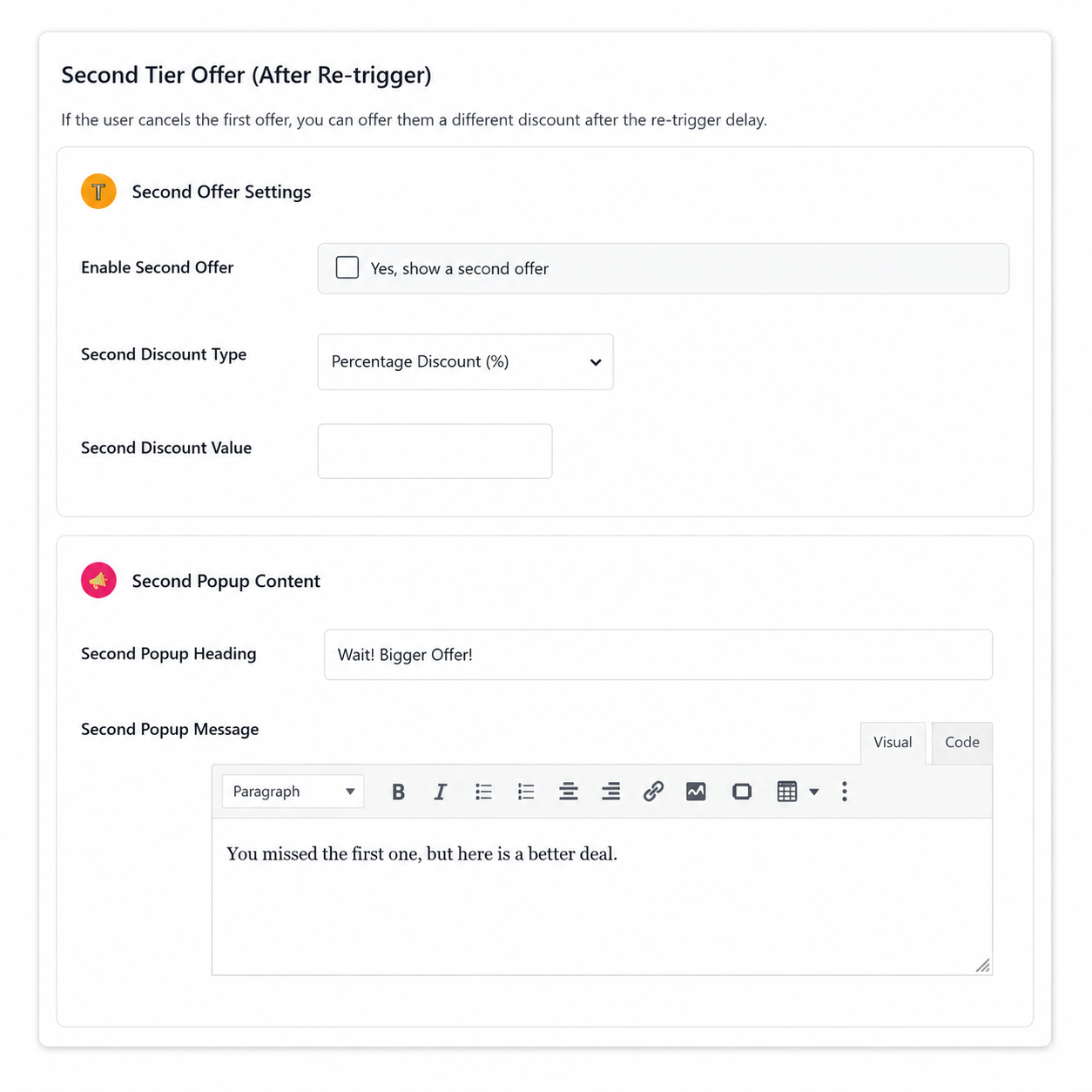
Step 7: Second Tier Offer (Optional) Pro
Configure a backup offer for visitors who close the first popup. If they close the second popup too, they are not shown any further offer for that product:
- Enable Second Offer: Check to activate second tier offer
- Second Discount Type: Choose percentage, fixed, or flat price
- Second Discount Value: Enter the discount amount (often higher than first offer)
- Second Discount Duration (Minutes): How long the second offer is valid after claiming (countdown timer value). Default: 120 minutes (2 hours)
- Second Popup Heading: Custom heading for second popup
- Second Popup Message: Custom message for second popup
Creating Discount Rules
Complete Step-by-Step Guide
Note: Product-specific rules have the highest priority and always override category and global rules. If multiple rules exist for the same product, the most recently added rule will be applied.
-
1
Navigate to Add New Rule
Go to Time-Based Offers → Product Rules → Add New
This will open the rule creation form with all configuration options.
-
2
Configure Target Selection
Choose one of three target types:
- • Specific Product: Select individual products from dropdown (highest priority)
- • Product Category: Select a category to apply to all products in it (medium priority)
- • All Products (Global): Apply to all products store-wide (lowest priority)
-
3
Set Rule Status
Check "Enable this rule" to activate the discount immediately after saving.
You can disable rules later without deleting them by unchecking this option.
-
4
Configure Schedule (Optional) Pro
Check "Enable Schedule" to restrict the rule to specific times:
- • Quick Preset: Choose Weekends Only, Weekdays Only, or Business Hours (9AM-6PM)
- • Date Range: Set start and end dates for the promotion period
- • Days of Week: Select specific days (Sunday through Saturday checkboxes)
- • Time Range: Set start and end times for daily activation
Leave all schedule options blank to run the rule continuously.
-
5
Set Timing Settings
Configure when the popup appears:
- • Trigger Time (Minutes): Enter time visitor must spend on page (recommended: 0.5-1.5 minutes)
- • Discount Duration (Minutes): Enter how long discount is valid after claiming (countdown timer; default 60 minutes)
- • Re-trigger Delay (Minutes): Enter wait time before showing popup again if user closes it Pro
Example: Trigger Time: 1, Discount Duration: 60, Re-trigger Delay: 5
This means popup appears after 1 minute, discount valid for 1 hour, and reappears after 5 minutes if closed. Decimals are allowed (0.5 = 30 seconds).
-
6
Configure Discount
Set the discount type and value:
- • Percentage Discount (%): Enter percentage (e.g., 20 for 20% off)
- • Fixed Amount: Enter a fixed amount off (e.g., 100 for 100 off in your store currency) Pro
- • Flat Product Price: Set a fixed price for the product Pro
Enter the Discount Value based on your selected type.
-
7
Customize Popup Content
Personalize the popup message:
- • Popup Heading: Main headline (default: "Special Offer Just For You!")
- • Popup Message: Detailed message with rich text editor (default: "Wait! Don't leave yet...")
Use the rich text editor to add formatting, links, or custom styling to your message.
-
8
Configure Second Tier Offer (Optional) Pro
Set up a backup offer for visitors who close the first popup (closing the second popup ends the offers for that product):
- • Check "Enable Second Offer" to activate
- • Choose Second Discount Type (percentage, fixed, or flat)
- • Enter Second Discount Value (often higher than first offer)
- • Enter Second Discount Duration in minutes — how long the second offer is valid after claiming (default 120 minutes = 2 hours)
- • Customize Second Popup Heading and Message
Tip: Use a higher discount value for the second offer to incentivize conversion (e.g., First: 15%, Second: 20%)
-
9
Save the Rule
Click the "Save Rule" button at the bottom of the form.
The rule is now active on your store and will start showing popups based on your configuration.
Success! Your discount rule is now live. Visit a product page on your store and wait for the configured trigger time to see the popup in action.
Managing Multiple Rules
When you have multiple discount rules for the same product, you can easily activate or deactivate them without deleting them. This allows you to test different offers or temporarily disable promotions.
How to Activate/Deactivate Rules
- 1. Navigate to Time-Based Offers → Product Rules
- 2. You will see a list of all your discount rules with their current status
- 3. Click the "Edit" button next to the rule you want to modify
- 4. Check or uncheck "Enable this rule" to activate or deactivate
- 5. Click "Save Rule" to apply the changes
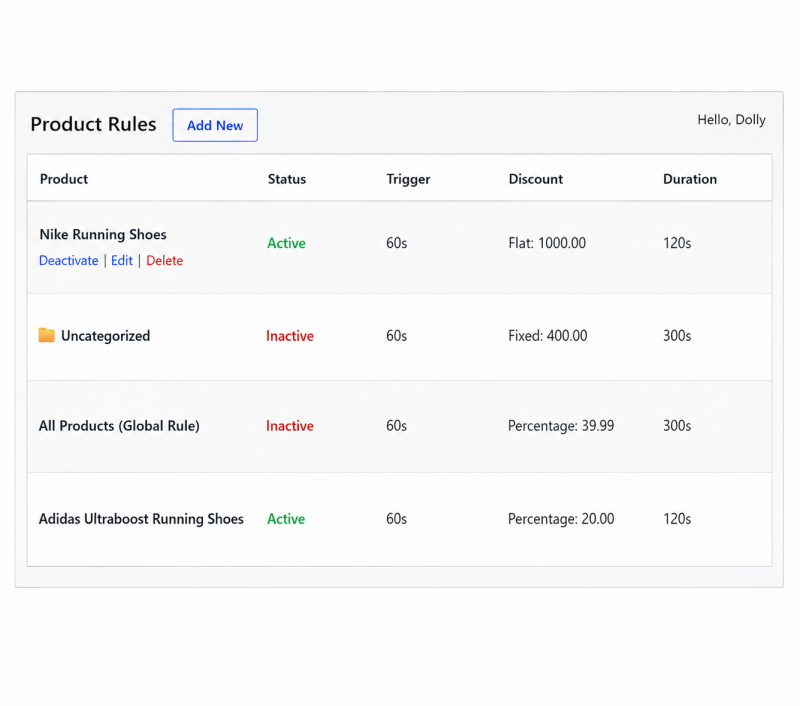
Tip: When multiple rules exist for the same product, only the most recently added active rule will be applied. Use the activate/deactivate feature to control which rule takes effect.
Filtering and Searching Rules
When you have many rules, use the filter bar above the rules list in Time-Based Offers → Product Rules to find the ones you need.
- Filter by category — choose a category and click Filter. The list shows the category rules for that category (and its sub-categories) and the product rules for products in that category.
- Search by product name — type part of a product name and click Search Rules. Upper and lower case do not matter, so "shirt" also finds "Blue Shirt".
- Use both together — for example, choose "Clothing" and search for "shirt".
- Clear Filter removes the category filter and keeps your search. Clear Search removes the search and keeps the category filter. Each button is greyed out when there is nothing to clear.
- The filter and search stay in place after you activate, deactivate or delete rules, including bulk actions.
Good to know:
- Global rules are hidden when a category is selected. A global (All Products) rule is not tied to any category, so it does not appear under a category filter, even though it still applies to every product. Choose All categories or click Clear Filter to see your global rules.
- Search only finds product rules. Category rules and global rules have no product name, so they never appear in search results. To find a category rule, use the category filter instead.
Sorting the Rules List
Click the Product or Status column heading to sort the list. Click the same heading again to reverse the order. An arrow next to the heading shows the current direction.
- Product — sorts A to Z (or Z to A) by the name shown in the column: the product name, the category name for category rules, or "All Products (Global Rule)". Upper and lower case do not matter.
- Status — ascending shows Active rules first, then Paused — requires Pro, then Inactive; descending shows the opposite.
- Sorting only changes the order of the list. It does not change any rule or its status, and it does not change which rule is applied on your store.
- Until you click a heading, the list keeps its normal order. Rules with the same name or status keep their normal order among themselves.
- The sort stays in place when you filter, search, clear a filter or search, and after you activate, deactivate or delete rules (including bulk actions).
- The Trigger and Duration columns are shown in minutes (e.g. "60 min").
Product Targeting
Target Types Explained
Global Rules
Applies to all products in your store. Lowest priority - can be overridden by category/product specific rules. Best for store-wide promotions.
Category Rules
Applies to all products in selected categories. Medium priority - overrides global rules. Best for category-specific promotions (e.g., Summer Sale on Clothing).
Product-Specific Rules
Applies only to selected products. Highest priority - overrides all other rules. Best for individual product promotions.
Priority Order
- 1. Product-specific rules (highest priority)
- 2. Category rules (medium priority)
- 3. Global rules (lowest priority)
Scheduling Pro
Scheduling is a Pro-only feature. On Free Trial these options stay locked until you activate a Pro license.
Date Range Scheduling
- Start Date: When the rule becomes active
- End Date: When the rule expires
- Leave blank for no date restrictions
Day of Week Scheduling
Select specific days (e.g., Weekends only). Useful for limited-time weekly promotions. Can combine with date ranges.
Time Window Scheduling
Set specific hours (e.g., 9 AM - 5 PM). Useful for business hours promotions. Can combine with day and date scheduling.
Quick Presets
- Weekends: Saturday & Sunday
- Weekdays: Monday - Friday
- Business Hours: 9 AM - 5 PM
- After Hours: 5 PM - 9 AM
Popup Customization
Design Options
Colors
- Background Color: Popup background
- Overlay Color: Background overlay
- Button Color: CTA button color
- Text Color: Main text color
- Heading Color: Heading text color
Typography
- Font Family: Choose from available fonts
- Font Size: Adjust text size
- Font Weight: Normal, bold, etc.
Layout
- Border Radius: Rounded corners
- Padding: Internal spacing
- Shadow: Drop shadow effect
Content
- Heading Text: Main headline
- Description Text: Subheading or description
- Button Text: CTA button label
- Logo: Upload your brand logo
Best Practices
- Use colors that match your brand
- Keep text concise and compelling
- Use clear, action-oriented button text
- Test different designs to optimize conversions
Second Tier Offers Pro
Second Tier Offers and Re-trigger Delay are Pro-only features.
What Are Second Tier Offers?
When a visitor closes the first discount popup, you can show a second offer after a delay. This helps recover abandoning visitors who weren't convinced by the first offer.
The second offer is the last one: if the visitor closes the second popup as well, no further offer is shown to them for that product — not on this page, and not when they reload the page or come back later in the same browsing session.
Configuration
- Enable Second Tier: Toggle "Enable Second Tier Offer" to ON
- Set Re-trigger Delay: Time in minutes before showing second popup (recommended: 0.5-1 minute)
- Configure Second Discount: Can be different from first offer (often a higher discount)
- Set Second Discount Duration: Time in minutes the second offer stays valid after it is claimed (countdown timer). It is separate from the first offer's Discount Duration. Default: 120 minutes (2 hours)
- Customize Second Popup: Separate design options for second popup
Use Cases
First offer: 15% OFF
Second offer: 20% OFF (higher incentive)
First offer: Free Shipping
Second offer: 10% OFF + Free Shipping
Analytics Dashboard
Metrics Tracked
Impressions
Number of times the popup was displayed. Helps measure visibility.
Claims
Number of times visitors clicked the discount button. Indicates interest level.
Conversions
Number of completed purchases using the discount. Measures actual revenue impact.
Revenue
Total revenue generated from discounted orders. Shows financial impact.
Viewing Analytics
- Go to Time-Based Offers → Dashboard
- Select date range (Today, Yesterday, Last 7 Days, Last 30 Days, Custom)
- View metrics for each rule
- Export data if needed
Using Analytics to Optimize
- High Impressions, Low Claims: Improve popup design or offer value
- High Claims, Low Conversions: Improve checkout flow or offer terms
- Low Impressions: Increase trigger time or expand targeting
FAQ
What payment methods are accepted?
We accept Google Pay, Apple Pay, PayPal, and Credit/Debit Cards (Visa, Mastercard) through Paddle. Payments are made on our website, not inside WordPress.
Is the Free Trial really free?
Yes — the Free Trial costs $0. You may be asked to complete a secure Paddle checkout to verify payment details. Your trial does not auto-convert to a paid plan; you must manually upgrade to Pro when ready.
Where do I find my license key after payment?
Log in to our website and open My Account. Your Pro license key and payment history are shown there. Copy the license key into WordPress under Time-Based Offers → Settings → Pro Plan License.
What currency is used for payment?
All Pro plan payments are processed in USD ($) only. Pricing on the website is shown in USD regardless of your country.
What happens when my free trial expires?
Discount popups stop appearing on your store and Product Rules can no longer be viewed or edited. Your rules are not deleted — they stay saved in your account. Purchase Pro and enter your license key in Settings → Pro Plan License, and everything comes back exactly as you left it.
Is there a separate Pro plugin?
No. There is only one plugin. Free Trial and Pro use the same download — your plan decides which features are unlocked. When you upgrade, just enter your Pro license key in Settings; you never need to uninstall or reinstall anything.
Where are my discount rules stored?
In your Time-Based Offers account. When you save a rule in WordPress it is stored securely on our server and synced back to your store. This keeps your rules safe if you reinstall the plugin or move your site, and lets us apply your plan's features correctly.
Does my store need to connect to your server?
Yes. The plugin connects to our server to check your plan, sync your rules, and confirm each discount a shopper claims. Your store keeps a recent copy of your rules, so short interruptions do not affect your shoppers. See our Privacy Policy for what is shared.
Do I need both a trial email and a license key?
No. Use either a Free Trial email OR a Pro license key. If you upgrade to Pro, enter your license key in the Pro Plan License section. A valid Pro license works even after your trial expires.
Why does the plugin still work after my trial expired?
If a valid Pro license key is saved in Settings, the plugin remains active. Clear the license key field and click Save License if you only want to use the free trial.
Does this plugin work with all WooCommerce themes?
Yes, Time-Based Offers for WooCommerce is compatible with all standard WooCommerce themes. The popup is designed to work seamlessly with most theme layouts.
Can I use multiple discount rules simultaneously?
Yes, you can create multiple rules. The priority system ensures the correct rule applies based on product, category, or global targeting.
Will this slow down my site?
No, the plugin is optimized for performance with minimal impact on page load times. The JavaScript is loaded asynchronously and the popup appears only when triggered.
Does the plugin work with WooCommerce HPOS?
Yes, the plugin is fully compatible with WooCommerce High-Performance Order Storage (HPOS).
Can I customize the popup CSS?
Yes, you can add custom CSS through the plugin settings for advanced customization.
Does the plugin work with page builders?
Yes, it works with Elementor, Divi, and other popular page builders without any conflicts.
Support
Getting Help
Documentation
Visit our documentation for detailed guides
Video Tutorials
Watch step-by-step video tutorials
Premium Support
Pro plan customers receive priority support with faster response times and dedicated assistance.
Reporting Bugs
To report a bug or issue:
- Describe the issue in detail
- Include your WordPress and WooCommerce versions
- Include plugin version
- Provide screenshots if applicable
- Contact us on WhatsApp: +91 88663 00463